8.9. Dropdown Problem
Dropdown problems allow the student to choose from a collection of answer options, presented as a dropdown list. Unlike multiple choice problems, whose answers are always visible directly below the question, dropdown problems don’t show answer choices until the student clicks the dropdown arrow.
8.9.1. Create a Dropdown Problem
You can create dropdown problems in the Simple Editor or in the Advanced Editor.
Note
All problems must include labels for accessibility. The label generally includes the text of the main question in your problem. To add a label for a common problem, surround the text of the label with angle brackets pointed toward the text (>>label text<<).
8.9.1.1. Simple Editor
To create a dropdown problem, follow these steps.
Under Add New Component, click Problem.
In the Select Problem Component Type screen, click Dropdown on the Common Problem Types tab.
In the new Problem component that appears, click Edit.
Replace the default text with the text for your problem. Enter each of the possible answers on the same line, separated by commas.
Determine the text of the problem to use as a label, and then surround that text with two sets of angle brackets (>><<).
Select all the answer options, and then click the dropdown button.

When you do this, a double set of brackets ([[ ]]) appears and surrounds the answer options.
Inside the brackets, surround the correct answer with parentheses.
In the component editor, select the text of the explanation, and then click the explanation button to add explanation tags around the text.

On the Settings tab, specify the settings that you want.
Click Save.
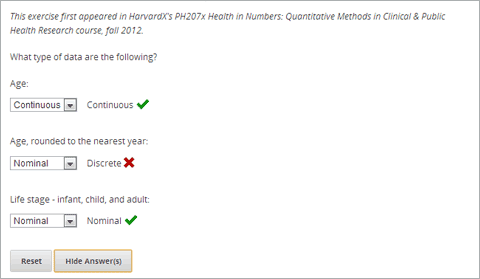
For the example problem above, the text in the Problem component is the following.
>>What type of data are the following?<<

Age:
[[Nominal, Discrete, (Continuous)]]
Age, rounded to the nearest year:
[[Nominal, (Discrete), Continuous]]
Life stage - infant, child, and adult:
[[(Nominal), Discrete, Continuous]]
8.9.1.2. Advanced Editor
To create this problem in the Advanced Editor, click the Advanced tab in the Problem component editor, and then replace the existing code with the following code.
Problem Code:
<problem>
<p>
<em>This exercise first appeared in HarvardX's PH207x Health in Numbers: Quantitative Methods in Clinical & Public Health Research course, fall 2012.</em>
</p>
<p>What type of data are the following?</p>
<p>Age:</p>
<optionresponse>
<optioninput options="('Nominal','Discrete','Continuous')" correct="Continuous" label="Age"/>
</optionresponse>
<p>Age, rounded to the nearest year:</p>
<optionresponse>
<optioninput options="('Nominal','Discrete','Continuous')" correct="Discrete" label="Age, rounded to the nearest year"/>
</optionresponse>
<p>Life stage - infant, child, and adult:</p>
<optionresponse>
<optioninput options="('Nominal','Discrete','Continuous')" correct="Nominal" label="Life stage"/>
</optionresponse>
</problem>
8.9.2. Dropdown Problem XML
8.9.2.1. Template
<problem>
<p>
  Problem text</p>
<optionresponse>
  <optioninput options="('Option 1','Option 2','Option 3')" correct="Option 2" label="label text"/>
</optionresponse>
  <solution>
    <div class="detailed-solution">
    <p>Explanation or Solution Header</p>
    <p>Explanation or solution text</p>
    </div>
  </solution>
</problem>
<problem>
 <p>Problem text</p>
  <optionresponse>
   options="('A','B')"
    correct="A"/>
    label="label text"
  </optionresponse>

  <solution>
    <div class="detailed-solution">
    <p>Explanation or Solution Header</p>
    <p>Explanation or solution text</p>
    </div>
  </solution>
</problem>
8.9.2.2. Tags
<optionresponse>(required): Indicates that the problem is a dropdown problem.<optioninput>(required): Lists the answer options.
Tag: <optionresponse>
Indicates that the problem is a dropdown problem.
Attributes
(none)
Children
<optioninput>
Tag: <optioninput>
Lists the answer options.
Attributes
Attribute Description options (required) Lists the answer options. The list of all answer options is surrounded by parentheses. Individual answer options are surrounded by single quotation marks (‘) and separated by commas (,). correct (required) Indicates whether an answer is correct. Possible values are “true” and “false”. Only one correct attribute can be set to “true”. label (required) Specifies the name of the response field. Children
(none)