
12.10. Course Optimizer#
The Course Optimizer page is available in edX Studio from the Tools dropdown menu, alongside Import, Export, and Checklists.
Use the Course Optimizer to scan your course for issues such as broken links, broken images, and links that point to content from a previous course run.
12.10.1. Scan for Broken Links and Images#
To scan your course:
Select Tools, then select Course Optimizer.
From the Course Outline page, open the Tools menu and select Course Optimizer.
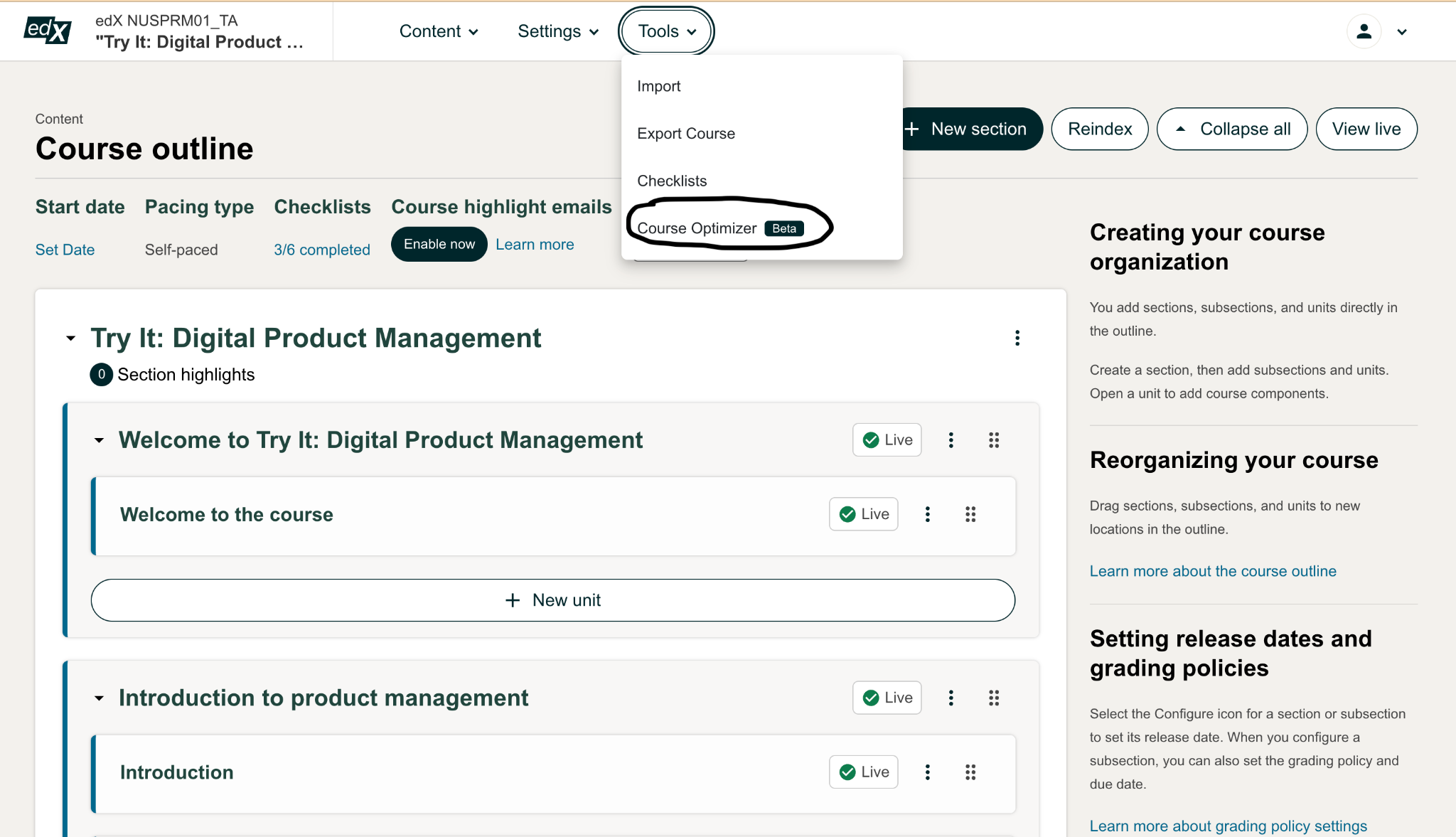
Select Scan course.
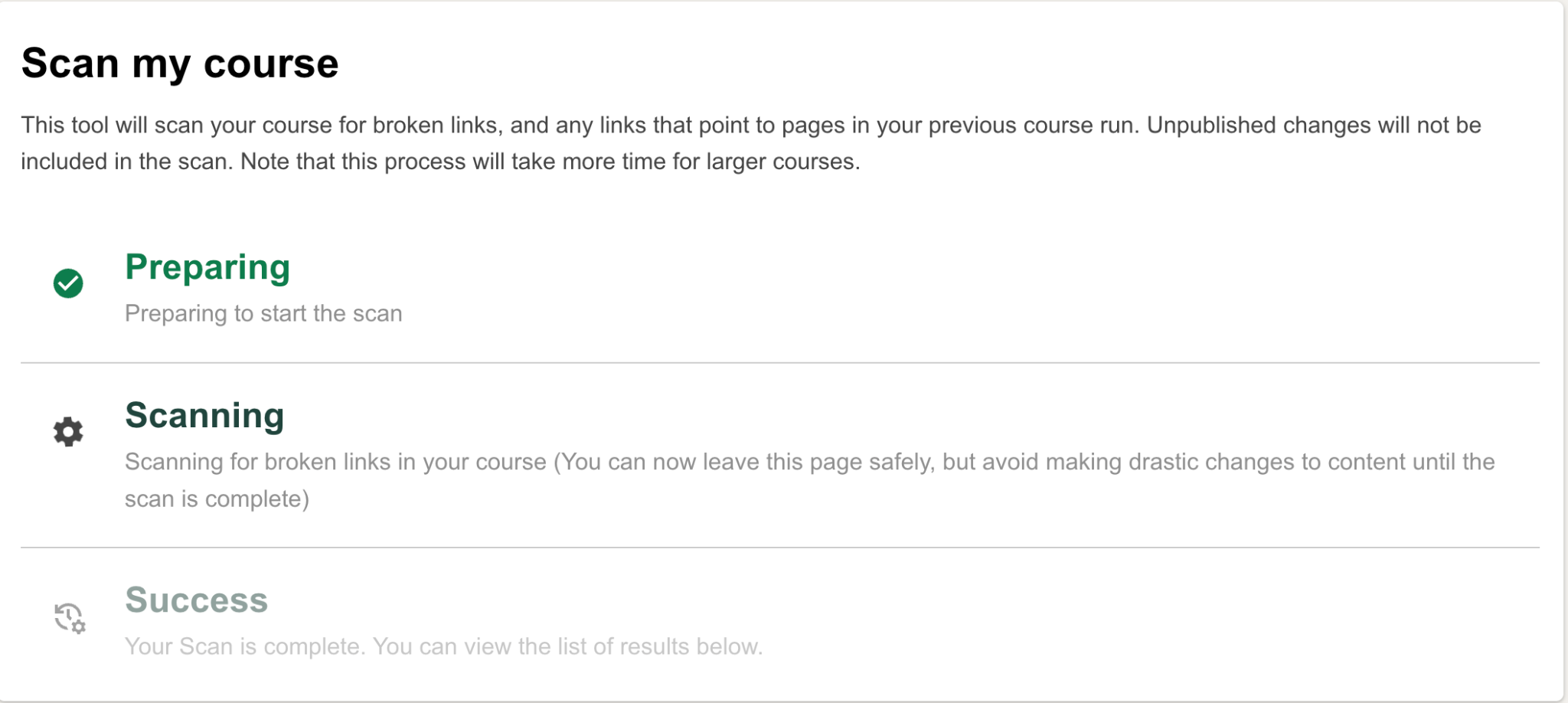
On the Course Optimizer page, select Scan course to start scanning your course content for broken links and images.

The scan progresses through three stages:
Preparing
Scanning
Success
Scan time depends on the size of your course.
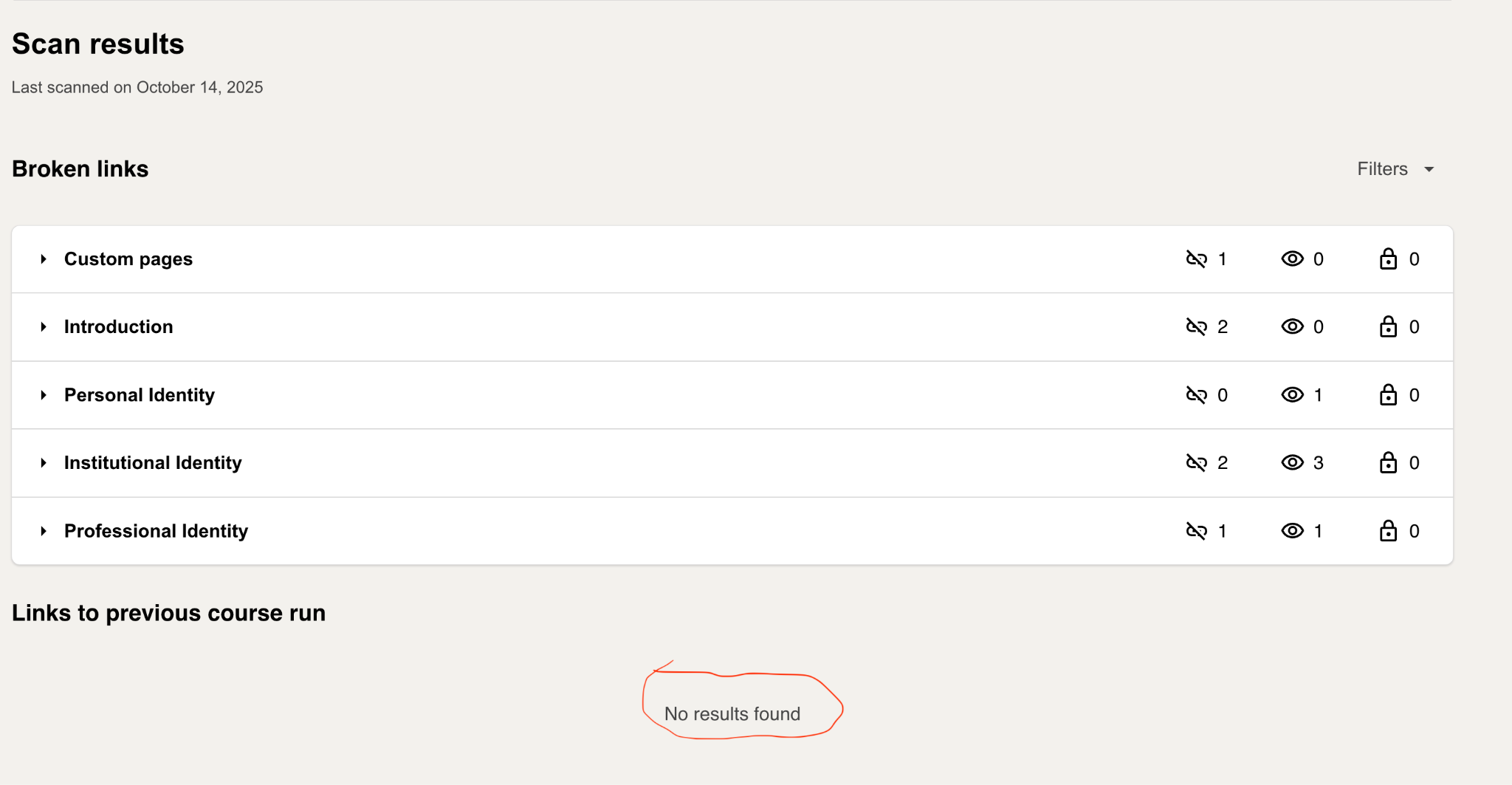
After the scan completes, the results page displays any broken links, broken images, and links that could not be verified.
Three icons indicate different types of link results:
Broken links
Links to external websites or images that no longer exist or cannot be reached. These links may prevent learners from accessing course content.
Unverified links
Links that cannot be automatically validated. Review these links manually.
Locked course file links
Links to course files that are inaccessible to non-enrolled users. These links cannot be verified automatically.
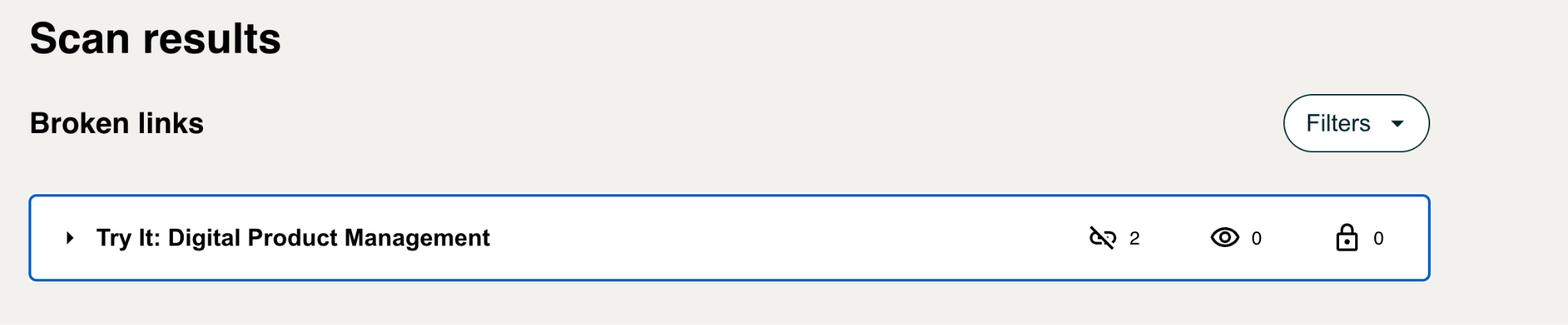
Use the available filters to refine the results list.

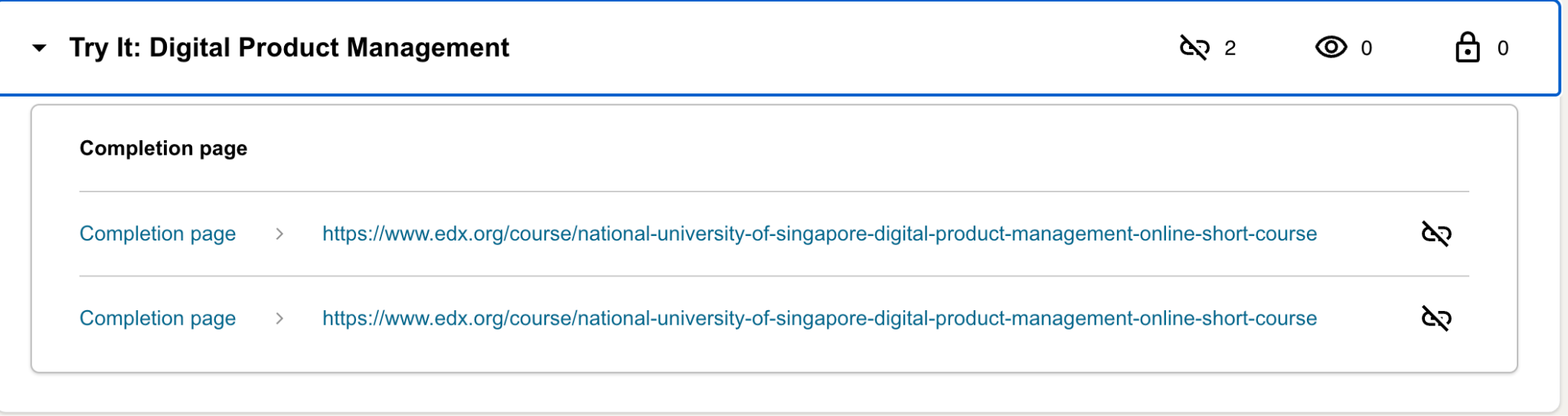
Expand any result to:
open the block where the issue appears
view the affected link directly
12.10.2. Update Links from a Previous Course Run#
The Course Optimizer also identifies links that still point to pages from a previous course run.
If no issues are found, the page displays:
No results found
If outdated links are detected, you can:
select Update all to update all links automatically
update individual links manually as needed
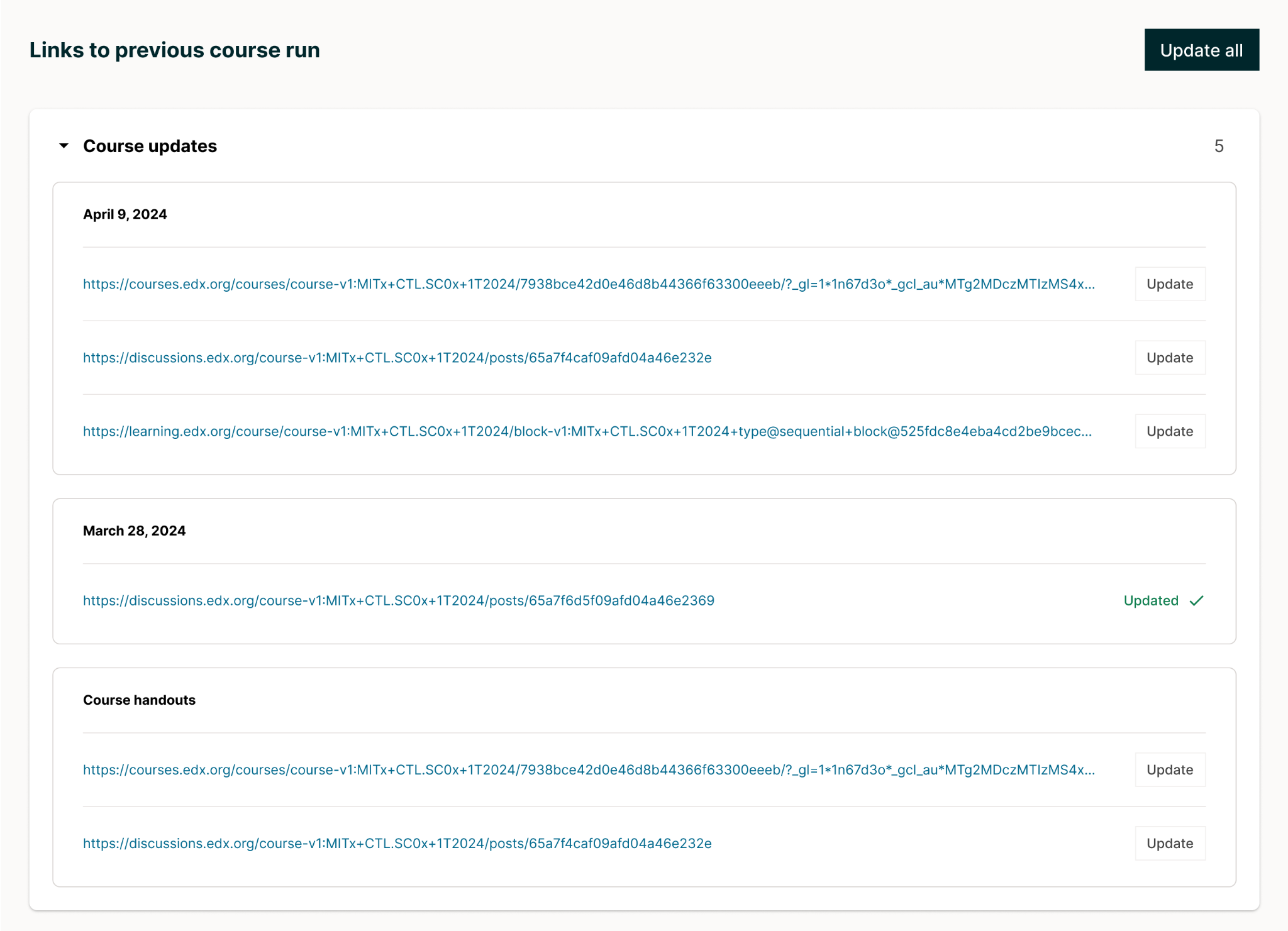
Updating these links ensures learners are directed to the correct content in the current course run.