10.21. In-Video Quiz Block#
The In-Video Quiz block allows course authors to create active learning opportunities for learners inside their videos. These quizzes can increase the understanding of the material in a video for the learner. It also adds more active learning to the course as a whole.
10.21.1. Adding an In-Video Quiz Block to Your Course#
To add an In-Video Quiz block:
Go to a Unit page in Studio.
Scroll to the bottom of the Unit page.
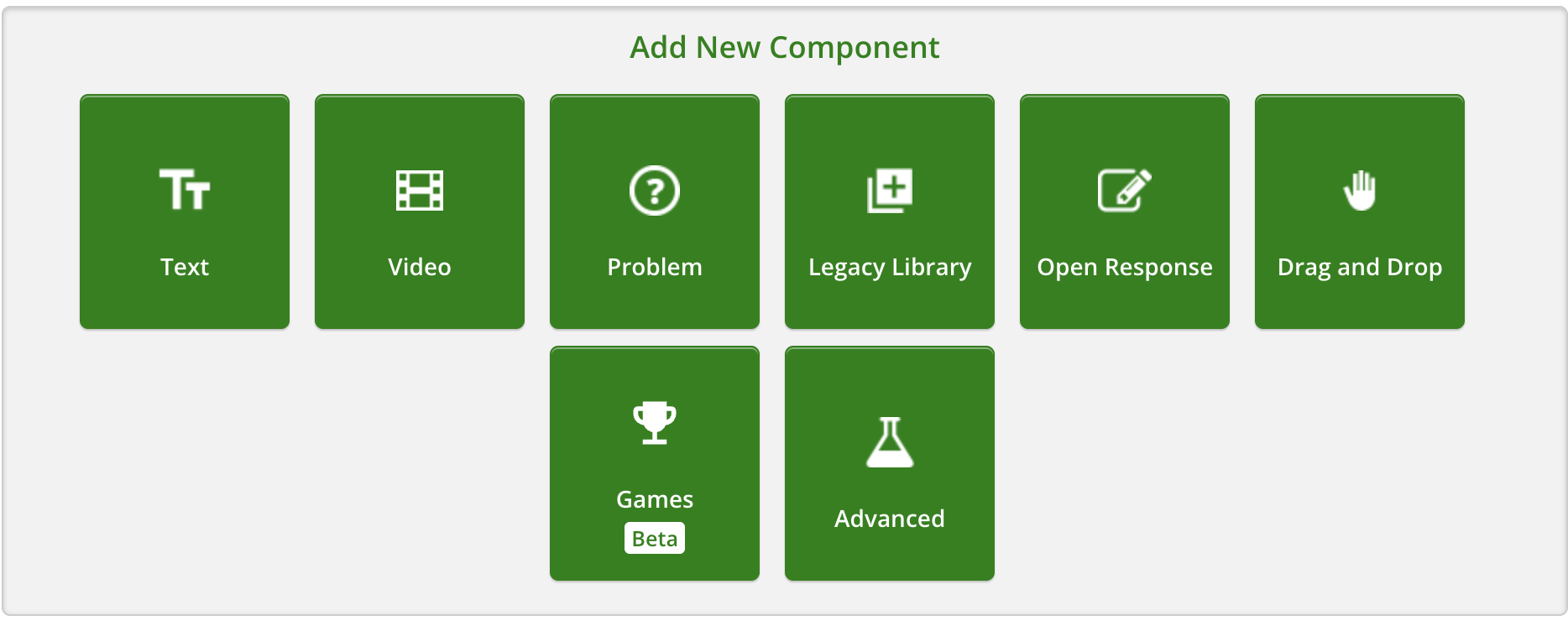
Select Advanced.
On the unit page, the Add New Component area lists the component types you can add to the unit. Select Advanced to view additional component types.
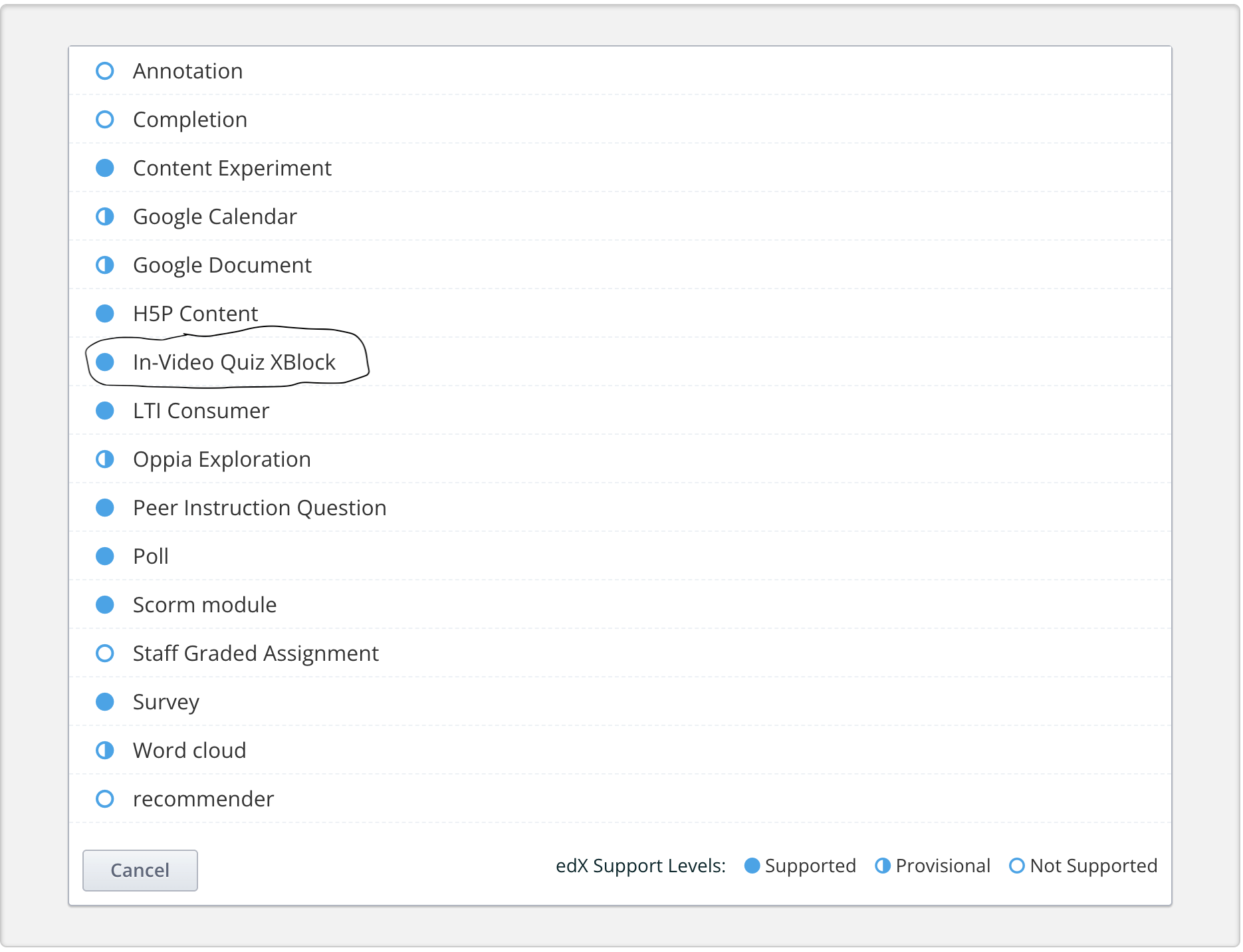
Select In-Video Quiz XBlock.
From the advanced components list, select In-Video Quiz XBlock.
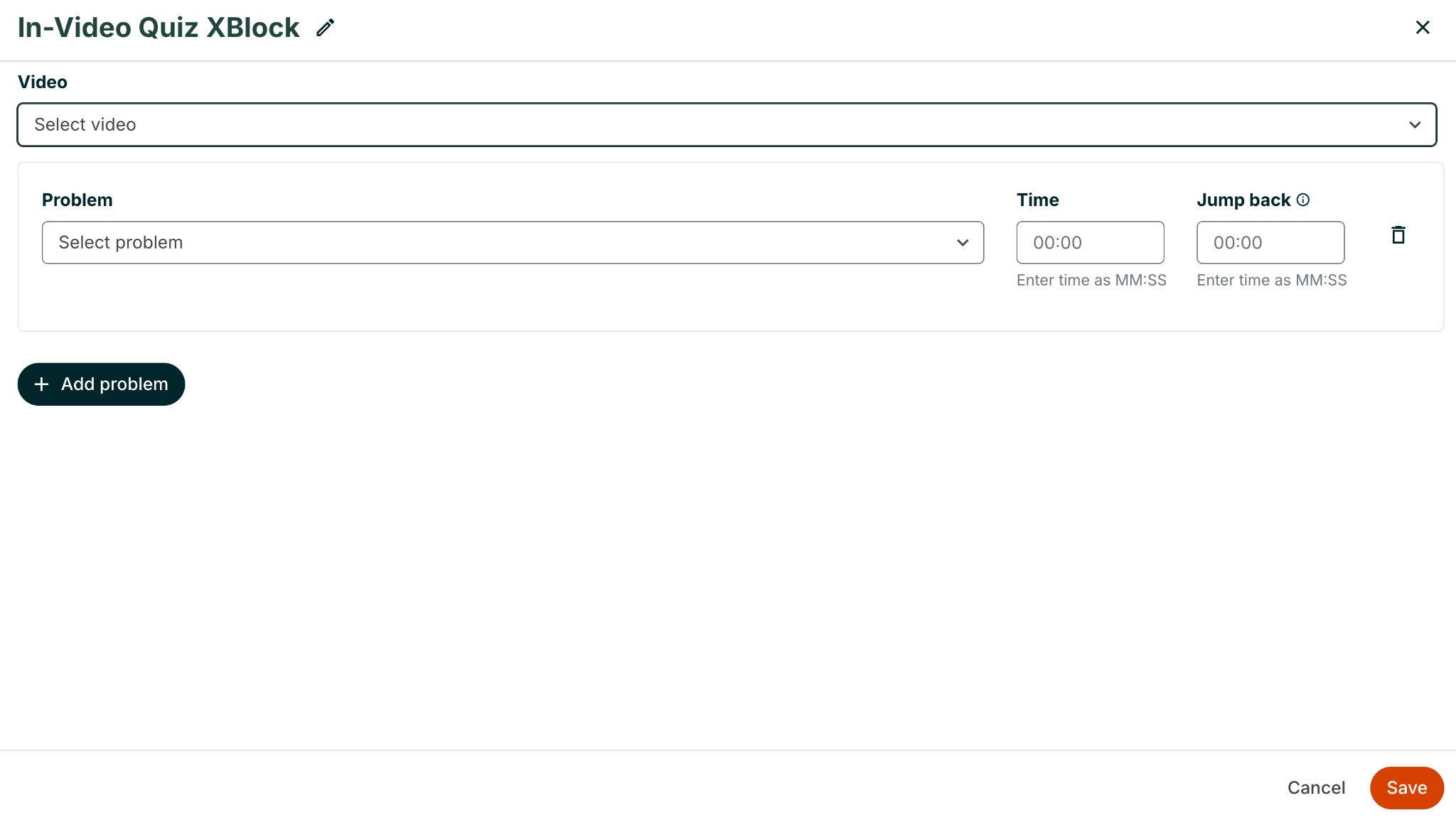
The In-Video Quiz block opens in the In-Video Quiz editor by default.
10.21.2. In-Video Quiz Editor#
Creating an In-Video Quiz:
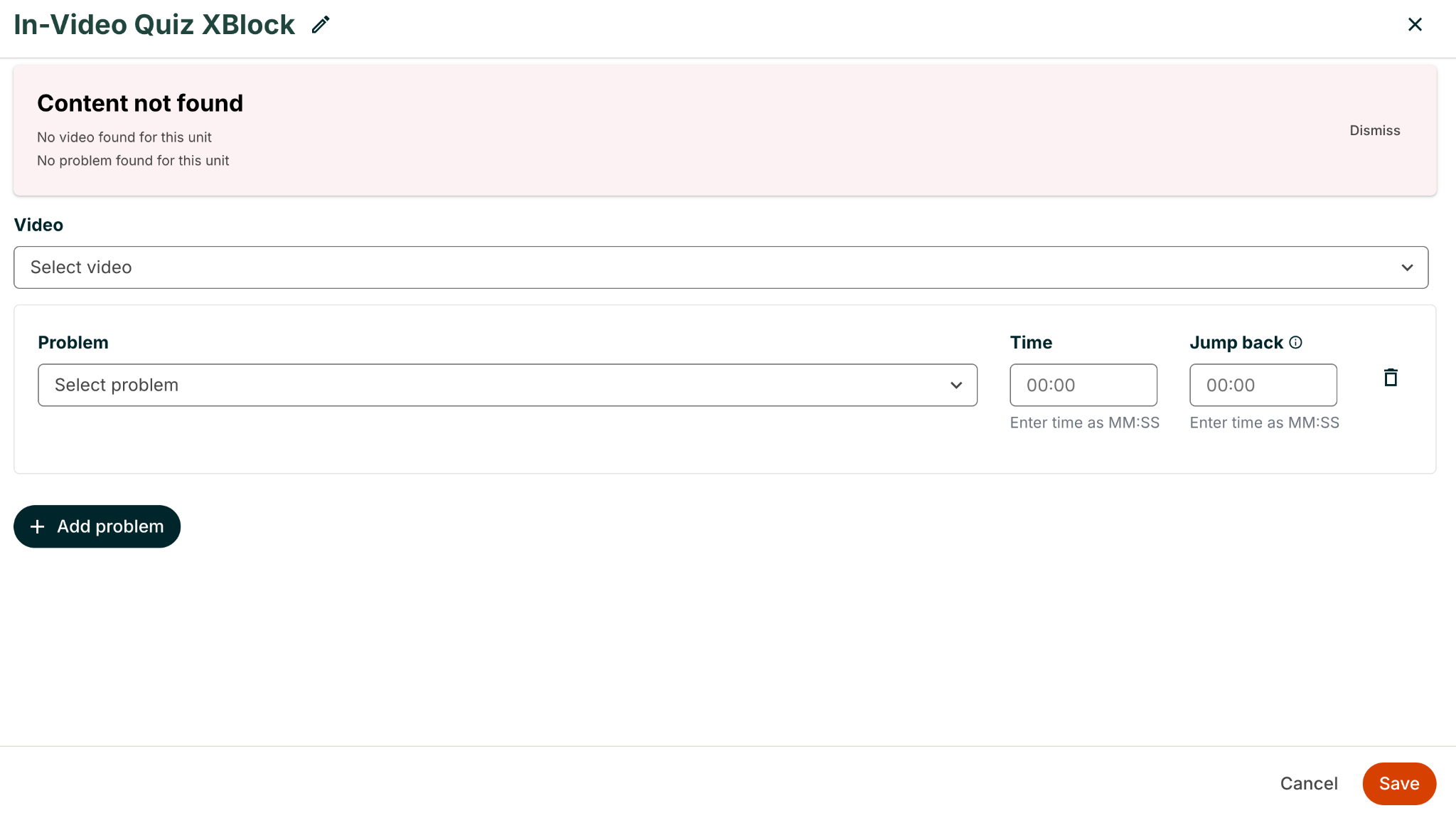
You need at least one video in the Unit. From the video dropdown, select which video you want to create an In-Video Quiz for.
If you do not have any videos in the Unit, you will receive a “Content Not Found” error message.
You need at least one problem in the Unit. From the problem dropdown, select which problem you want to add to your In-Video Quiz.
If you do not have any problems in the Unit, you will receive a “Content Not Found” error message.
In the Time field, select the timestamp in the video at which you want the problem to appear.
In the Jump back field, you can configure “jump points” which route the learner back to a specific timestamp in the video where the topic was covered.
To add a new problem, select the Add problem button.
In the In-Video Quiz editor, use the Video dropdown to choose the target video, then configure each problem with a Time and optional Jump back timestamp.
If the unit does not contain a video or problem component, Studio displays a Content not found message in the editor.
10.21.3. Student Perspective in the LMS#
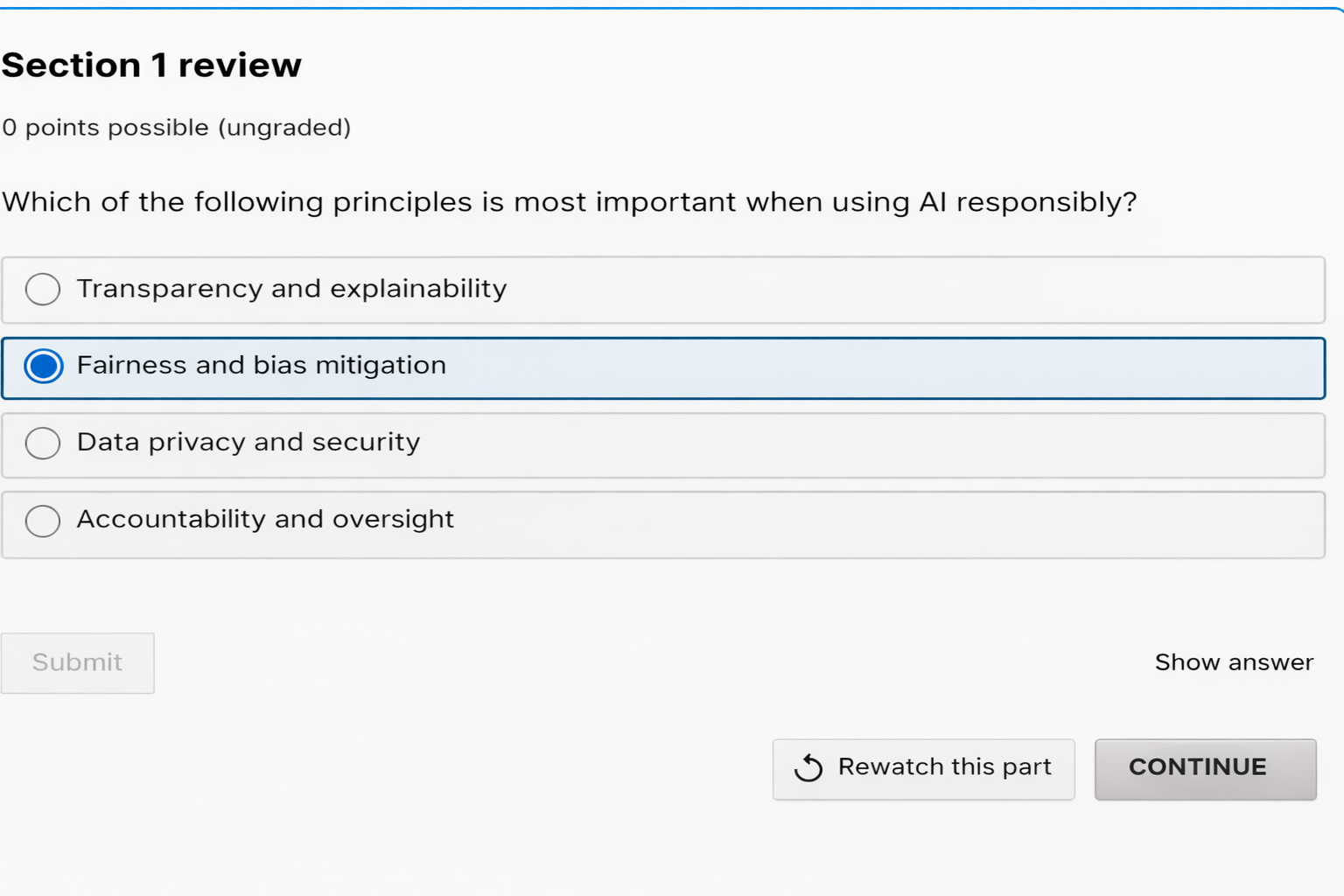
From the student perspective in the LMS, they can click on “Rewatch this part” and they will be taken back to the Jumpback timestamp that the course author entered.
From the student perspective in the LMS, they can click on “Continue” to continue to the next problem (or watching the video if there are no remaining problems).